Getting Started with Dumpify
This guide will help you get up and running with Dumpify in just a few minutes.
Table of Contents
- Installation
- Basic Usage
- Dumping Different Types
- Adding Labels
- Controlling Depth
- Different Output Targets
- Next Steps
Installation
Install Dumpify via NuGet:
# .NET CLI
dotnet add package Dumpify

# Package Manager Console
Install-Package Dumpify
After installation, add the using directive to your code:
using Dumpify;
That’s it! The .Dump() extension method is now available on all objects.
Basic Usage
The simplest way to use Dumpify is to call .Dump() on any object:
using Dumpify;

// Dump a simple object
var person = new { Name = "John", Age = 30 };
person.Dump();

The .Dump() method returns the original object, so you can chain it in your code:
var result = GetData()
    .Dump()  // Inspect the data
    .Where(x => x.IsActive)
    .Dump()  // Inspect filtered data
    .ToList();
Dumping Different Types
Classes and Records
public class Person
{
    public string FirstName { get; set; }
    public string LastName { get; set; }
    public int Age { get; set; }
}

var person = new Person
{
    FirstName = "John",
    LastName = "Doe",
    Age = 30
};
person.Dump();
Arrays
var numbers = new[] { 1, 2, 3, 4, 5 };
numbers.Dump();

Multi-dimensional Arrays
var matrix = new int[,] { { 1, 2 }, { 3, 4 } };
matrix.Dump();

Dictionaries
var dict = new Dictionary<string, string>
{
    ["Key1"] = "Value1",
    ["Key2"] = "Value2"
};
dict.Dump();

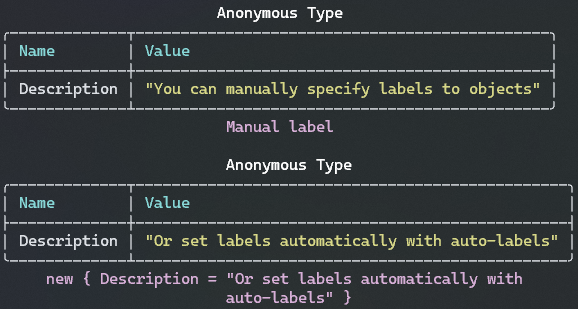
Adding Labels
You can add a label to identify your dumps:
// Manual label
person.Dump("My Person Object");

// Auto-labels (use variable name as label)
DumpConfig.Default.UseAutoLabels = true;
person.Dump(); // Label will be "person"
Controlling Depth
For deeply nested objects, you can control the maximum depth:
// Limit to 2 levels of nesting
complexObject.Dump(maxDepth: 2);

// Or set globally
DumpConfig.Default.MaxDepth = 3;
Different Output Targets
Dumpify supports multiple output targets:
// Console (default)
obj.Dump();
obj.DumpConsole();

// Visual Studio Debug output
obj.DumpDebug();

// Trace output
obj.DumpTrace();

// Get as plain text string
string text = obj.DumpText();
Next Steps
Now that you know the basics, explore more:
- Configuration - Customize colors, table layout, and more
- Features - Learn about all Dumpify features
- Examples - See more code examples
- API Reference - Complete API documentation
Quick Reference
| Method | Description |
|---|---|
.Dump() |
Dump to configured output (Console by default) |
.Dump("label") |
Dump with a custom label |
.Dump(maxDepth: n) |
Dump with limited nesting depth |
.DumpConsole() |
Dump explicitly to Console |
.DumpDebug() |
Dump to Visual Studio Debug output |
.DumpTrace() |
Dump to Trace output |
.DumpText() |
Get dump as a plain text string |